Profile Settings
Customize your Buildly Product Labs experience by managing your personal profile, preferences, and account settings. The profile settings allow you to tailor the platform to your working style and communication needs.
Accessing Profile Settings
To access your profile settings:
Click on your profile avatar or name in the top navigation
Select “Profile Settings” or “Account Settings” from the dropdown menu
You’ll be taken to your personal settings dashboard
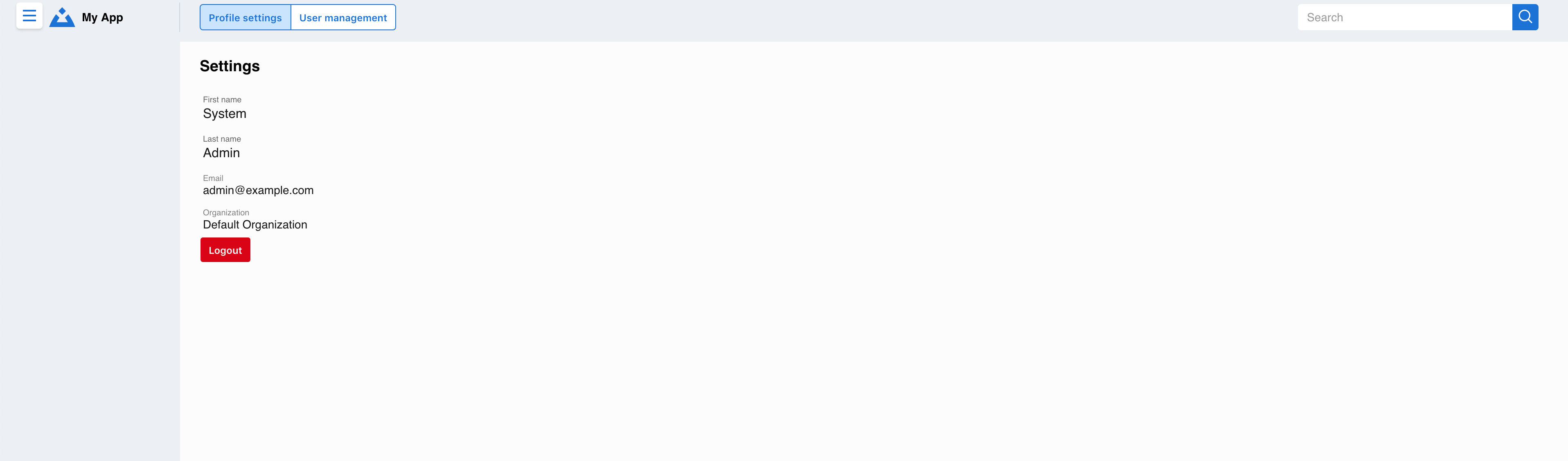
Personal Information
- Basic Profile Details
Update your core profile information:
Full Name - Display name shown to other users
Email Address - Used for login and notifications
Job Title - Your role within the organization
Department - Team or department association
Phone Number - Contact information (optional)
Profile Picture - Upload a photo or avatar
- Bio and Expertise
About Me - Brief description of your role and expertise
Skills and Interests - Help team members understand your capabilities
Time Zone - Ensures accurate scheduling and deadline displays
Preferred Language - Interface language preference
Account Preferences
- Notification Settings
Customize how and when you receive updates:
Email Notifications - Choose which emails you want to receive
In-App Notifications - Control desktop and mobile alerts
Digest Frequency - Daily, weekly, or custom summary emails
Quiet Hours - Set times when you don’t want to be disturbed
- Dashboard Customization
Personalize your dashboard experience:
Default View - Choose your preferred landing page
Widget Layout - Arrange dashboard components
Data Refresh Rate - How often information updates
Favorite Projects - Pin frequently accessed projects
- AI Assistant Preferences
Configure your BabbleBeaver AI experience:
AI Suggestions - Enable/disable intelligent recommendations
Learning Permissions - What data the AI can use to help you
Interaction Style - Formal, casual, or technical communication
Automation Level - How much the AI should automate for you
Security Settings
- Password Management
Maintain account security:
Change Password - Update your login credentials
Two-Factor Authentication - Add extra security to your account
Login History - View recent access to your account
Active Sessions - Manage where you’re currently logged in
- Privacy Controls
Manage your data and visibility:
Profile Visibility - Control who can see your information
Activity Sharing - Choose what activities are visible to others
Data Export - Download your personal data
Account Deletion - Request removal of your account
Integration Settings
- Connected Accounts
Link external services and tools:
Calendar Integration - Connect Google Calendar, Outlook, etc.
Communication Tools - Link Slack, Microsoft Teams, etc.
Development Tools - Connect GitHub, GitLab, Jira, etc.
Cloud Storage - Link Google Drive, Dropbox, OneDrive
- API Access
For advanced users:
Personal Access Tokens - Generate tokens for third-party integrations
Webhook URLs - Configure external notifications
OAuth Applications - Manage connected applications
Team and Collaboration
- Team Memberships
View and manage your team associations:
Current Teams - Teams you’re a member of
Pending Invitations - Teams you’ve been invited to join
Team Roles - Your permissions within each team
Team Preferences - How you interact with different teams
- Collaboration Preferences
Configure how you work with others:
Availability Status - Show when you’re available for collaboration
Working Hours - Your typical schedule for better coordination
Communication Style - Preferences for meetings, messages, etc.
Expertise Sharing - Areas where you can help other team members
Tips for Optimizing Your Profile
Best Practices
Complete Your Profile - Add a professional photo and comprehensive bio - Keep your contact information current - Update your skills and expertise regularly
Customize Notifications - Start with default settings and adjust based on your needs - Use quiet hours to maintain work-life balance - Set up digest emails to reduce notification overload
Leverage AI Features - Allow BabbleBeaver to learn from your patterns - Regularly review and adjust AI recommendations - Provide feedback to improve AI accuracy
Maintain Security - Use strong, unique passwords - Enable two-factor authentication - Regularly review your login history and active sessions
Stay Connected - Link your frequently used tools and services - Keep your team memberships current - Update your availability and working hours
Troubleshooting Profile Issues
Common Problems
Can’t Update Information: Check with your administrator about permission settings
Notifications Not Working: Verify email settings and check spam folders
Integration Failures: Reauthorize connected services and check credentials
Profile Picture Issues: Ensure image meets size and format requirements
- Getting Help
Contact your system administrator for permission-related issues
Use the platform’s help system for technical problems
Check the 🎉 CORS Issue Resolution Summary for common technical issues